Google Drive
Connect your Google Drive account to pull files — Google Sheets and Docs — into your organization as ingestible datasets.
Connect your Google account
-
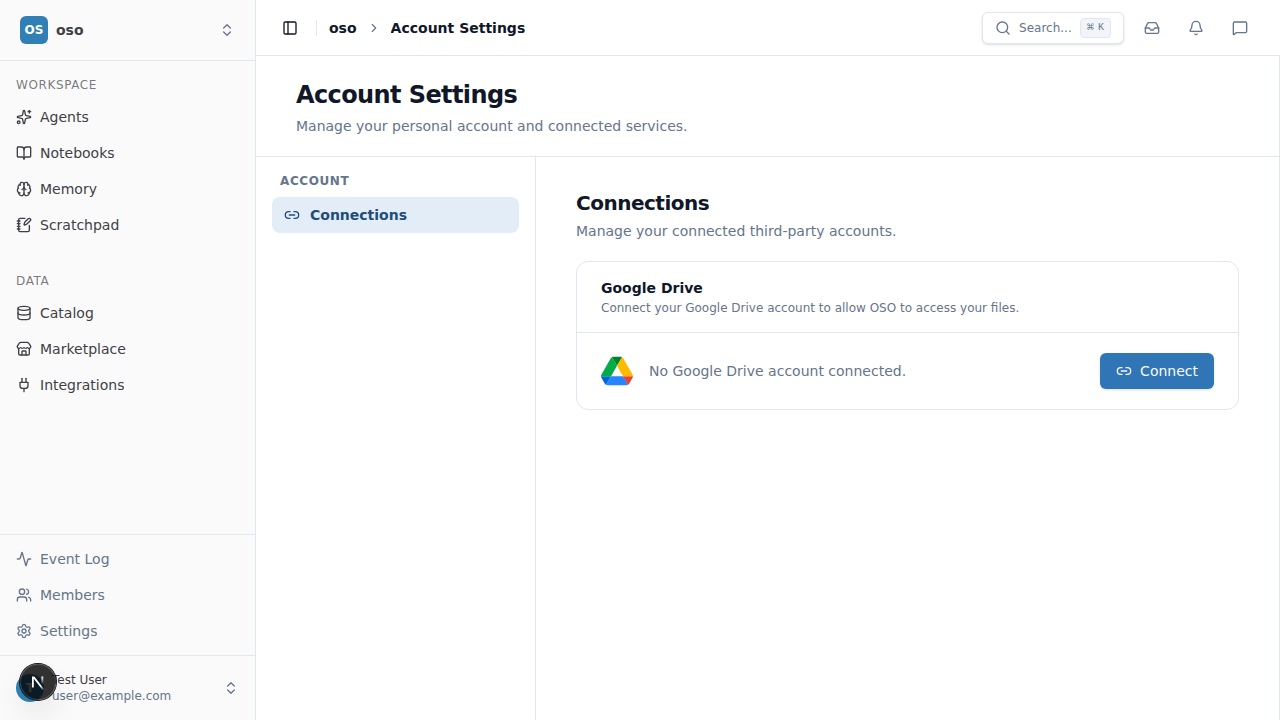
From your organization, open Integrations in the sidebar. Find Google Drive and click Connect — this takes you to Account Settings → Connections.
-
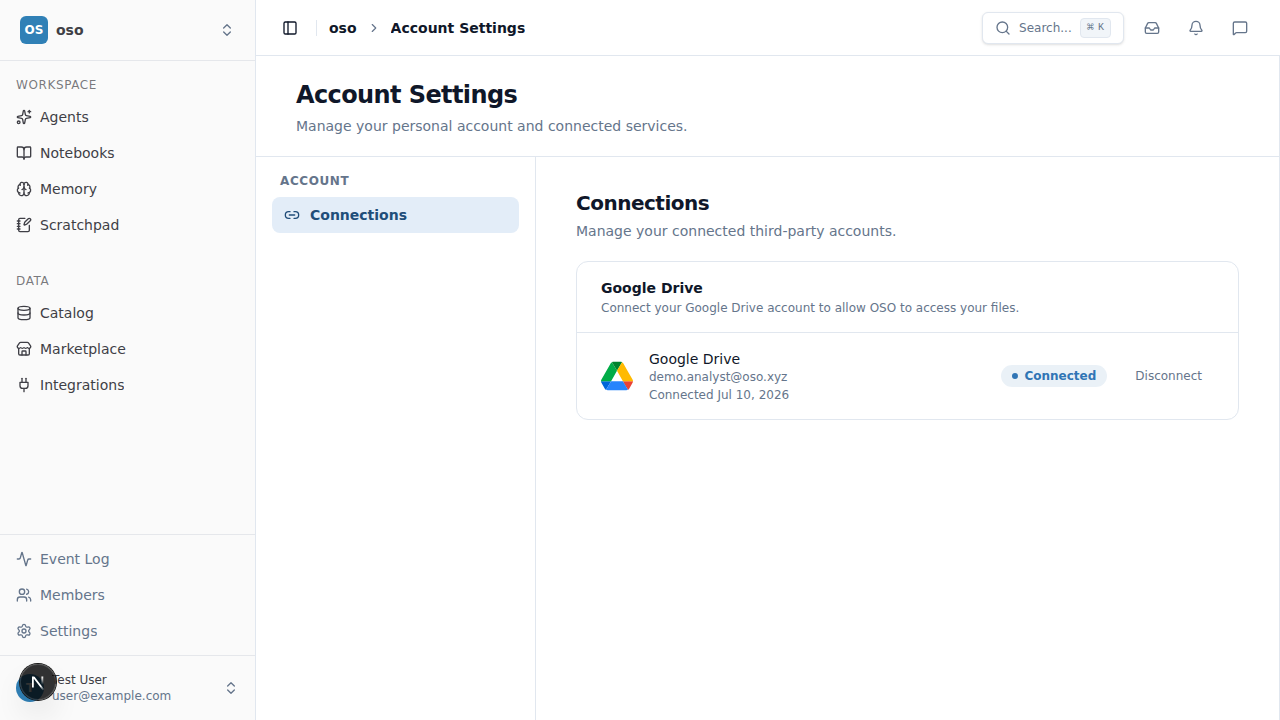
Click Connect next to Google Drive and sign in with the Google account whose files you want to bring in. You'll be redirected back once the connection succeeds.
Add files
- Back on the Integrations page, click Manage on the Google Drive row.
- Click Add files to open the Google Drive file picker and select one or more Sheets or Docs.
- Name the dataset for each selected file (a valid machine name is suggested automatically), and — for Sheets — choose which tabs or named ranges to ingest. Click Add to confirm.
Each file becomes its own dataset and starts syncing right away. Integrated files are listed in the same dialog, and their sync status is visible in the Data Catalog.
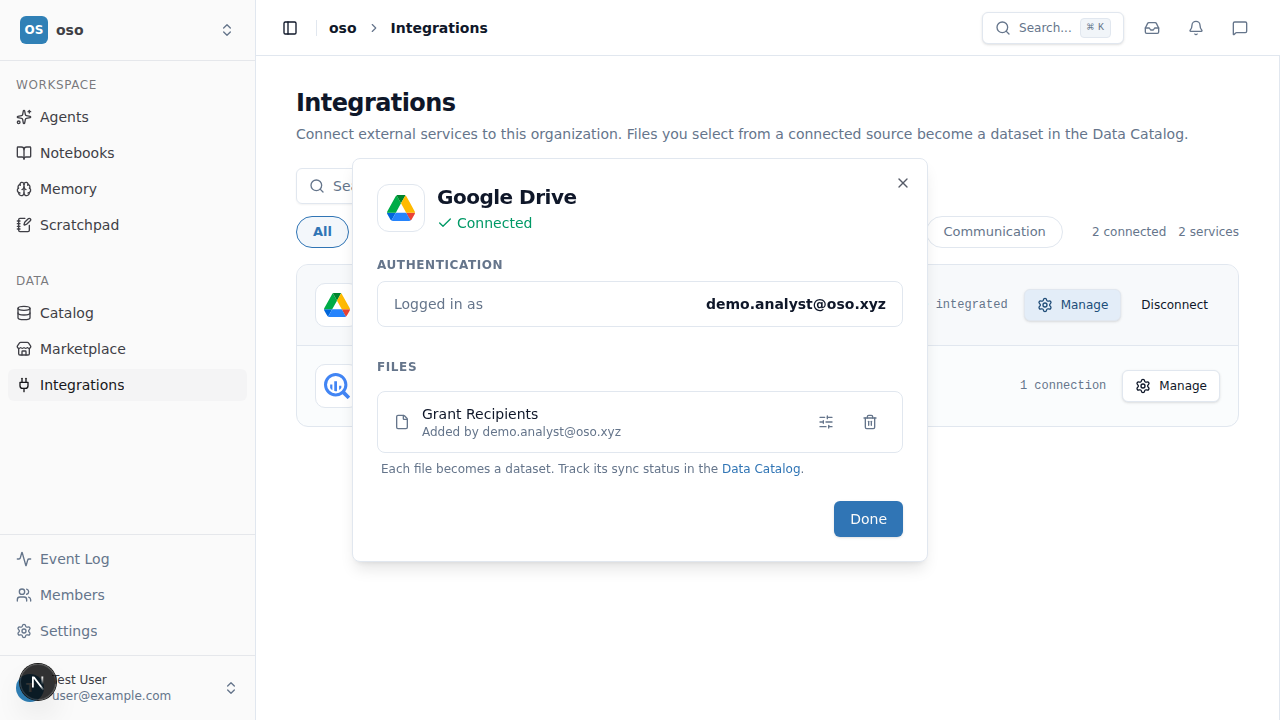
Only the account that added a file can edit its sheet options. Removing a file deletes its dataset and stops future syncs, but leaves the original file in Google Drive untouched.