BigQuery
Connect a Google BigQuery project to your organization to query its datasets directly from OSO. Once connected, each synced BigQuery dataset appears in your organization's Data Catalog.
Prerequisites
- A GCP project with the BigQuery API enabled.
- A service account with read access to the BigQuery datasets you want to sync, and a JSON key for that service account.
Connect BigQuery
-
From your organization, open Integrations in the sidebar. Find BigQuery in the list and click Connect.
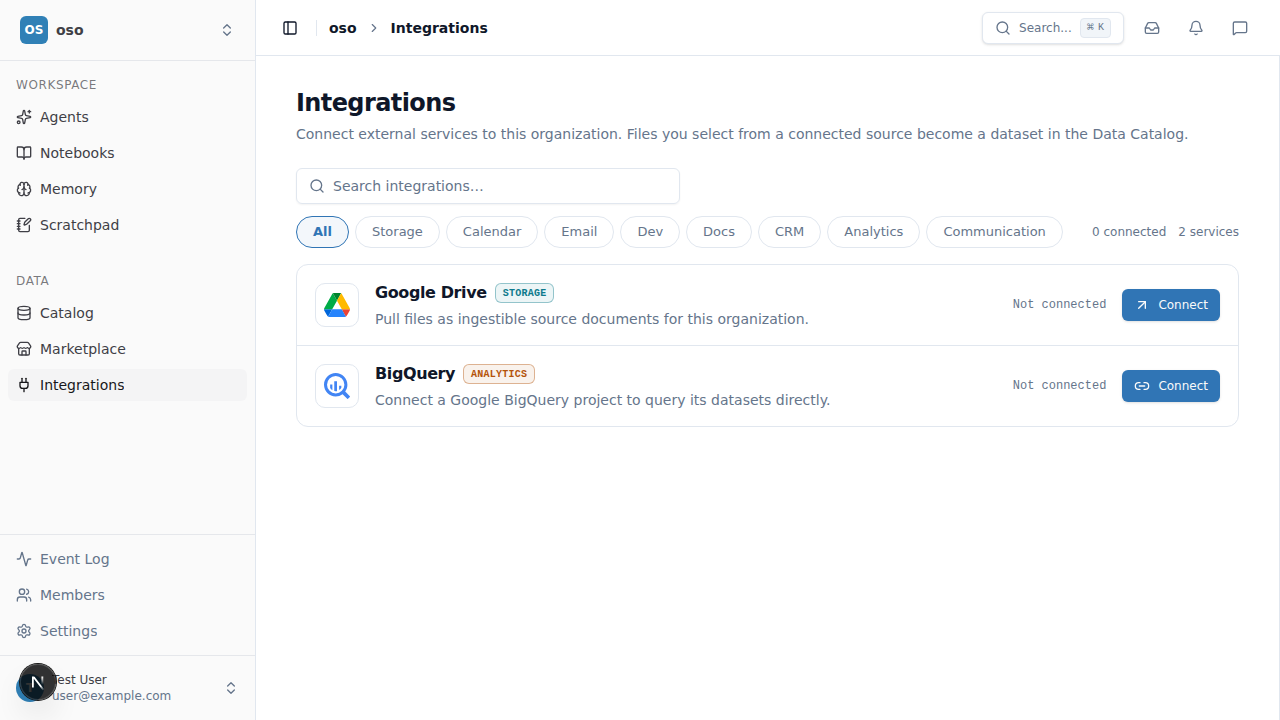
-
Click Add connection and fill in the form:
- Name — a machine name for this connection (lowercase letters,
numbers, and underscores, e.g.
oso_analytics). - Project ID — the GCP project ID that owns the BigQuery datasets.
- Credentials — paste the service account key JSON, or click Upload .json to upload the key file directly.
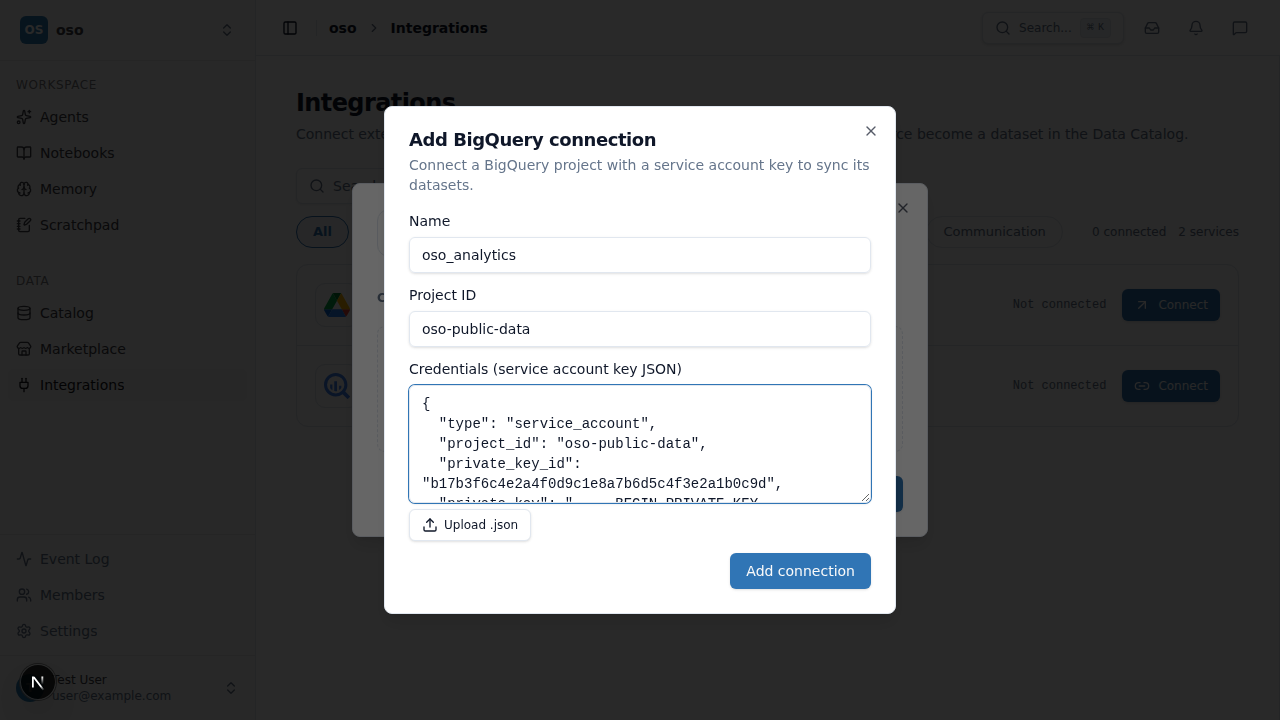
Click Add connection to save it. OSO validates the connection and starts an initial sync automatically.
- Name — a machine name for this connection (lowercase letters,
numbers, and underscores, e.g.
-
Once connected, BigQuery shows up as Connected on the Integrations page.
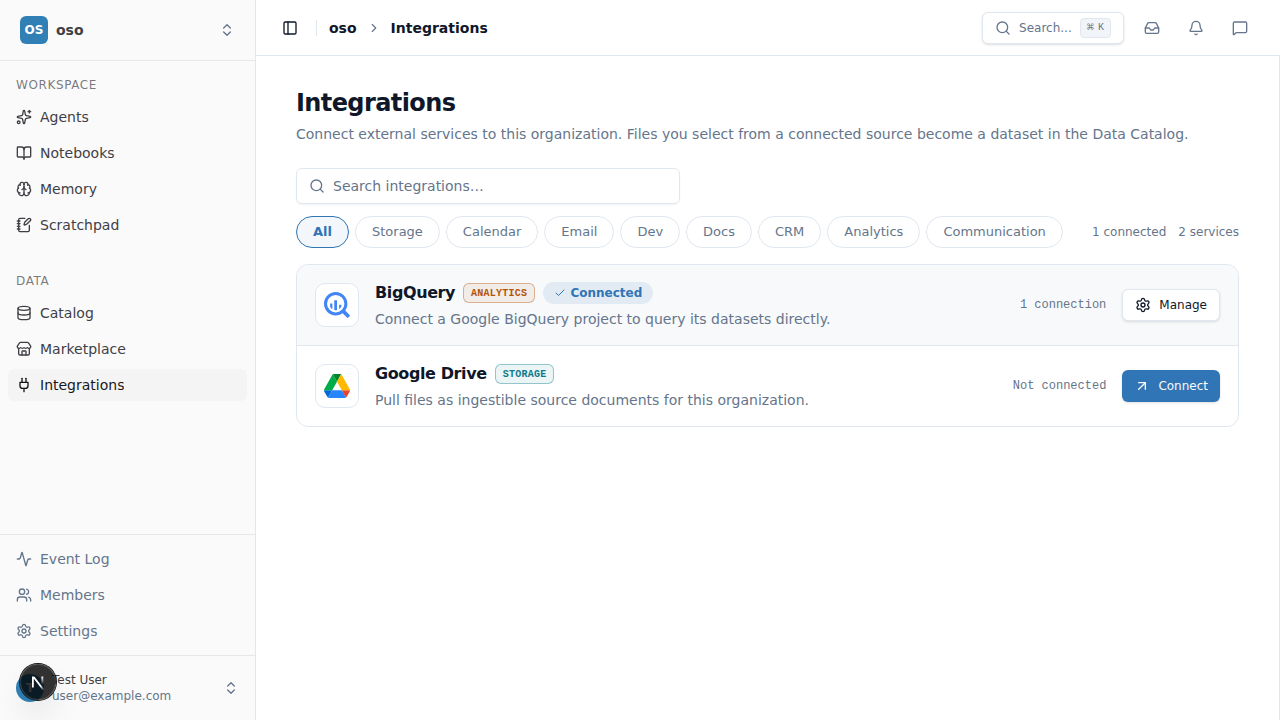
Manage a connection
Click Manage on the BigQuery row to see all connections for your organization, add another one, trigger a manual sync, or disconnect a connection. Synced datasets are listed under each connection and also appear in the Data Catalog.
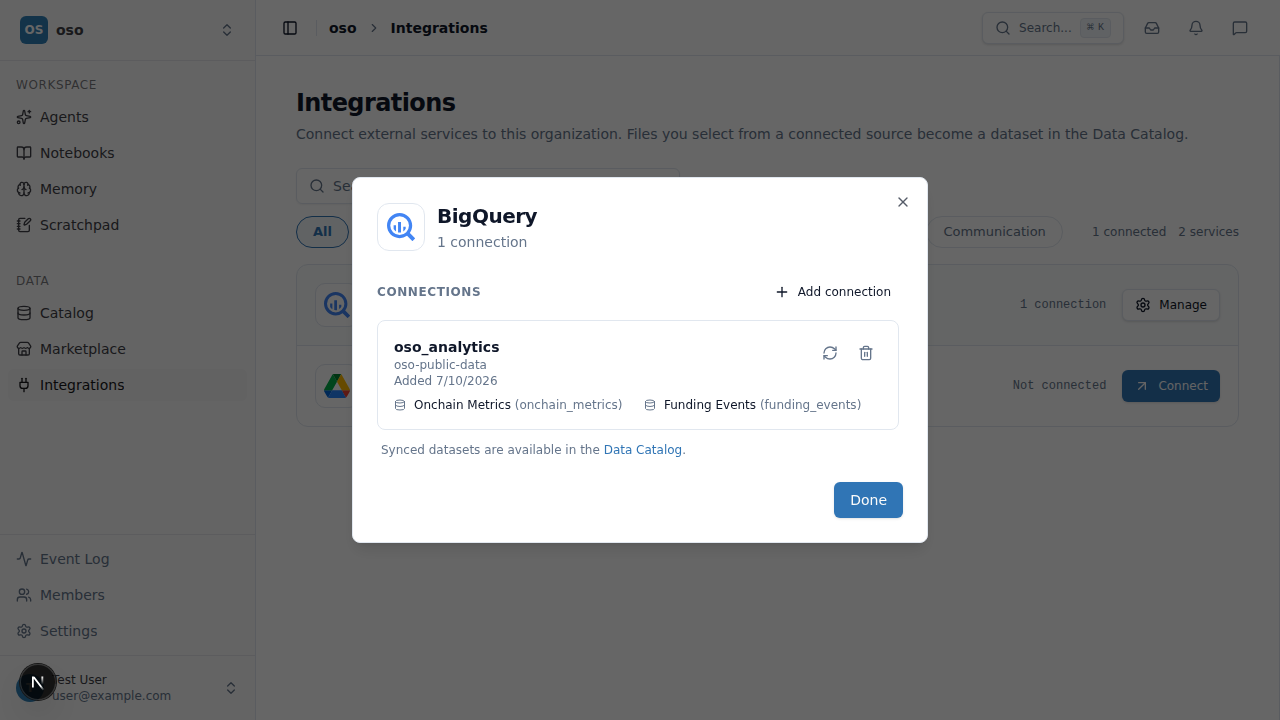
Disconnecting a BigQuery connection removes it and its synced datasets from OSO. It does not affect the underlying BigQuery project.